


Open Optimize → Right-Click Menu → diCleaner Menu to set up the commands you want to use in Finder.
There are two ways to open the menu:
- Finder right-click menu: Control-click a file, folder, or empty area in a folder, then choose diCleaner.
- Keyboard shortcut: Press your chosen shortcut while Finder or the desktop is active.
The commands you enable apply to both methods. You can use either method or both.
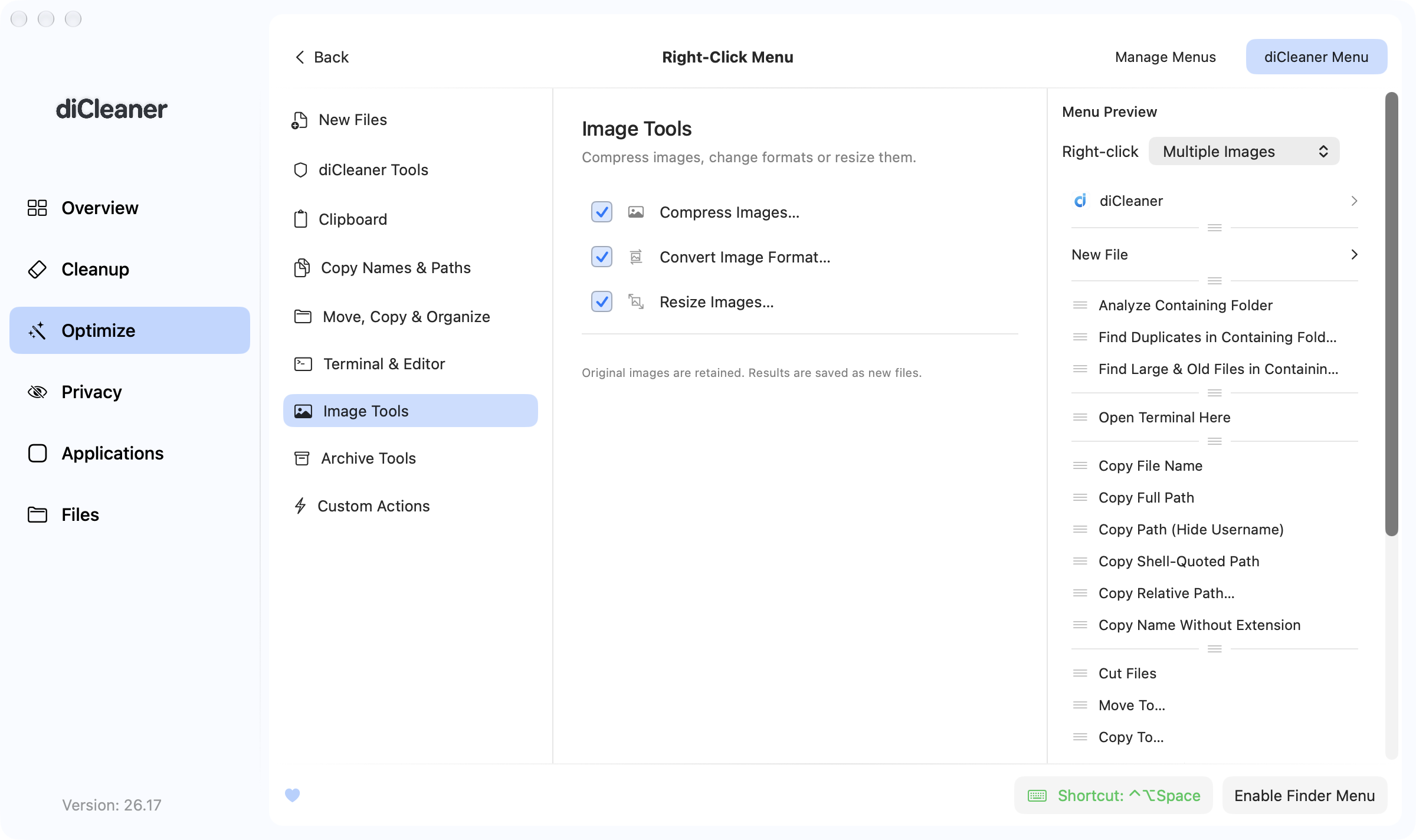
Show diCleaner in Finder’s right-click menu
- Open Optimize → Right-Click Menu → diCleaner Menu.
- Select Enable Finder Menu.
- In the panel that opens, select Open System Settings.
- Turn on the diCleaner Finder extension.
- Return to diCleaner and select Refresh Status.
- In Finder, Control-click a file or folder and look for diCleaner.
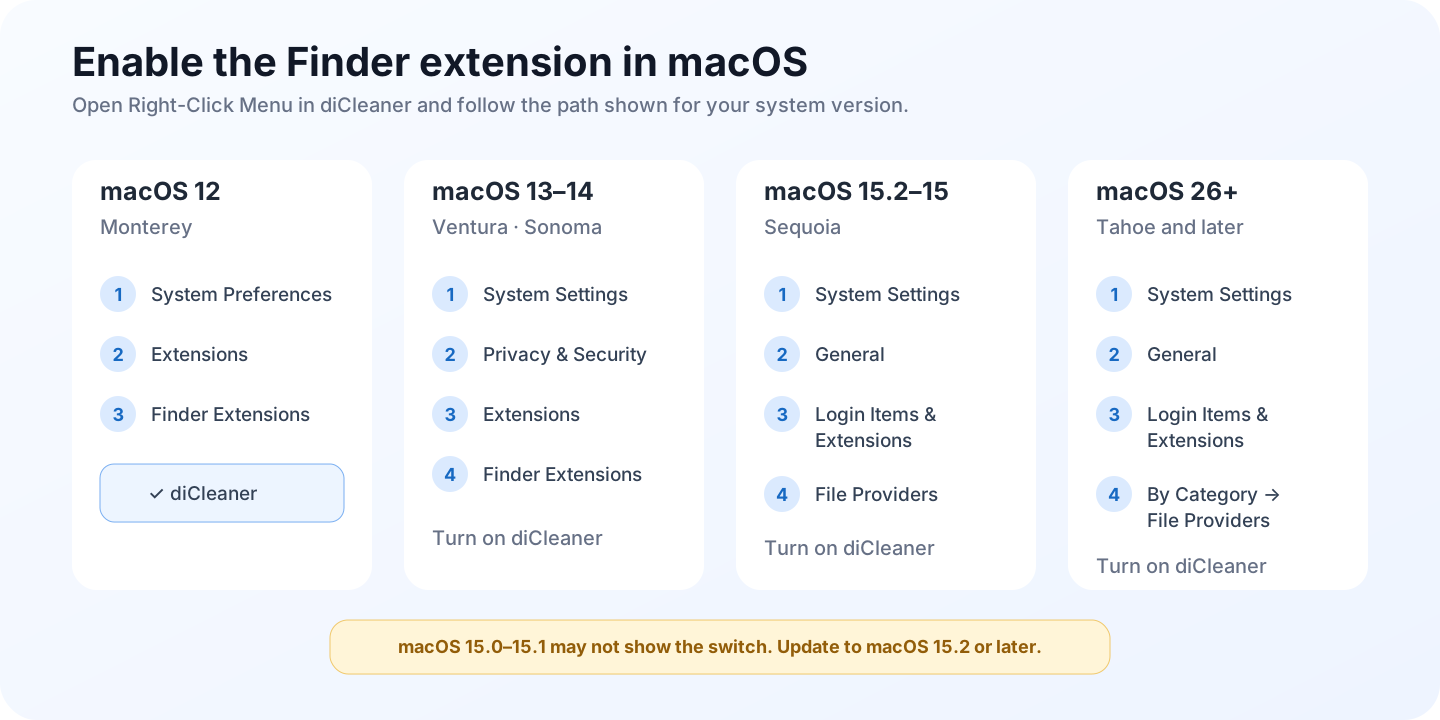
macOS puts Finder extensions in different places depending on its version. Use the path shown inside diCleaner. The diagram below is a quick reference.
You can also choose:
- Keep actions in a diCleaner submenu to place all commands under one diCleaner item.
- Show menu icons to show an icon beside each command.
Set a keyboard shortcut instead
The shortcut opens the same menu in Finder or on the desktop. It is useful when Finder does not show extension menus in a particular location.
- Select Set Shortcut at the bottom of the window.
- Turn on Enable keyboard shortcut.
- Record a shortcut that includes Command or Control.
- Keep diCleaner running in the menu bar.
- If macOS asks whether diCleaner may control Finder, allow it so diCleaner can read the current folder and selection.
Choose the commands you need
Select a category on the left, then turn individual commands on or off.
| Category | What you can do |
|---|---|
| New Files | Create common file types or copies of your own template files. |
| Clipboard | Save clipboard text or images as a file, or paste copied files into a folder. |
| Copy Names & Paths | Copy a file name or a full, relative, Unix, or Windows-style path. |
| Move, Copy & Organize | Cut, move, copy, rename, or add items to diCleaner Favorites. |
| Terminal & Editor | Open the selected location in your chosen terminal or editor. |
| Image Tools | Convert, resize, or compress supported images. Original images are kept. |
| Archive Tools | Create or extract archives. |
| diCleaner Tools | Open the selection in Space Analyzer, Duplicate Files, Large & Old Files, or Uninstaller. |
| Custom Actions | Send selected files to an Apple Shortcut. The direct edition can also run a shell script. |
Check when a command will appear
Use Menu Preview on the right to choose what you are right-clicking, such as Folder, Image, ZIP, or Application. For Clipboard and organization commands, also choose what the clipboard contains.
diCleaner hides commands that do not apply to the current selection. For example:
- image commands appear only when supported images are selected;
- Extract ZIP appears for a ZIP archive;
- Paste Files Here appears after files have been copied;
- Move Here appears after files have been cut with diCleaner;
- Uninstaller actions appear for applications.
If an enabled command is missing in Finder, first select the same situation in Menu Preview. This usually shows whether the command needs a different selection or clipboard content.
Change the menu order
In Menu Preview:
- Drag the handle in a category divider to move the whole category.
- Drag the handle beside a built-in command to move it within that category.
Some rows, including added templates and custom actions, cannot be moved. They are aligned with the other rows but do not show an active drag handle. Changes are saved automatically.
Add your own items
- In New Files, select Add Template File…. diCleaner creates a copy of the template; it does not change the original file.
- In Move, Copy & Organize, select Add Folder… to add a destination to Move To and Copy To.
- Use Add to Favorites in Finder to add files or folders to the star menu in the diCleaner menu-bar panel.
- In Custom Actions, select Add Action… to add an Apple Shortcut. The direct edition can also add an existing shell script.
diCleaner asks for confirmation before running a custom action. Review what the Shortcut or script does before allowing it to use selected files.
Features that vary by edition
The Mac App Store edition does not include encrypted disk images, Vault actions, or shell-script custom actions. Apple Shortcut actions are available.
The Manage Menus tab is separate from the diCleaner menu setup. Use it only when you want to open macOS settings for Finder extensions, Quick Actions, or Services, including items installed by other apps.