


Use the section below that matches what you see.
The entire diCleaner menu is missing in Finder
- Open Optimize → Right-Click Menu → diCleaner Menu.
- Select Enable Finder Menu.
- In the setup panel, check the status of the Finder extension.
- If it is off, select Open System Settings and turn it on.
- Return to diCleaner and select Refresh Status.
- Control-click a file or folder in Finder again.
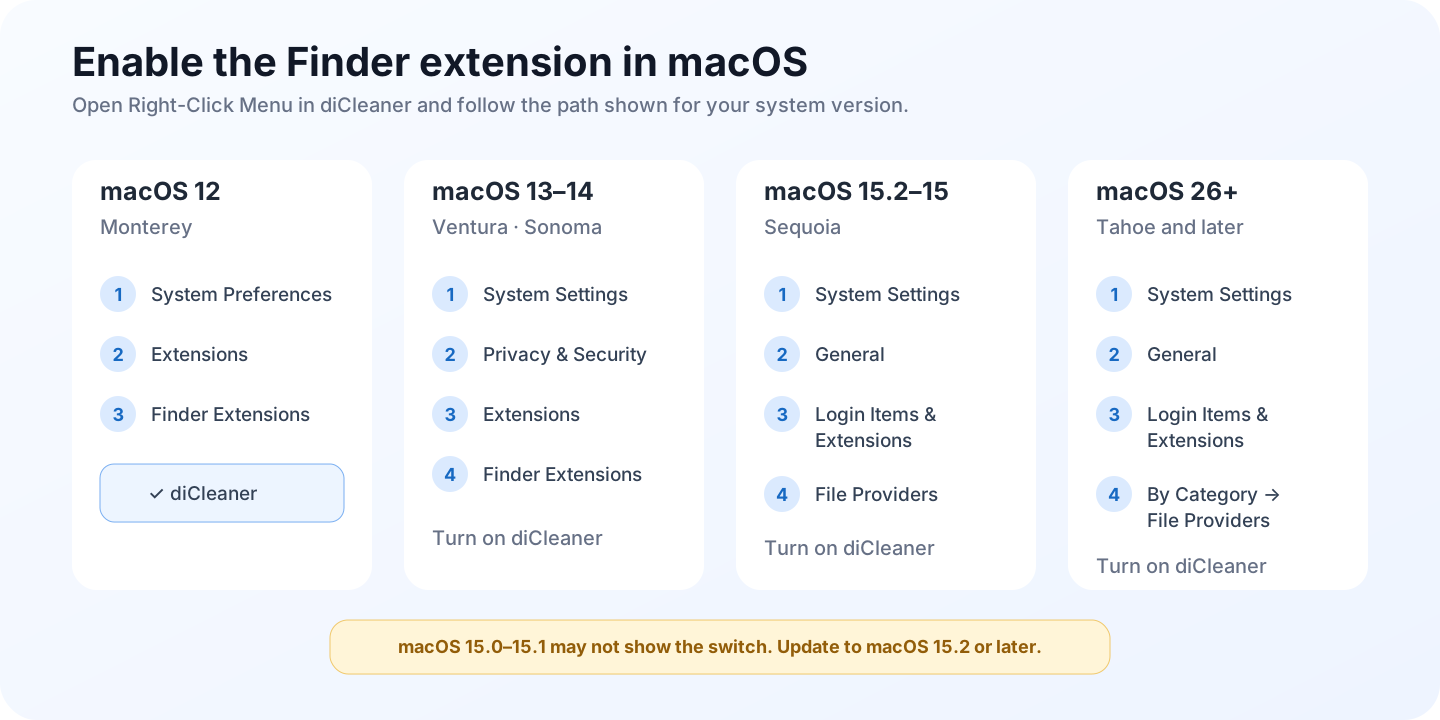
If the extension is on but the menu is still missing:
- Quit extra copies of diCleaner and keep the intended copy in Applications.
- Relaunch Finder, or sign out and back in, so macOS reloads the extension.
- Reopen diCleaner and select Refresh Status again.
Multiple installed copies can make macOS load an older extension even when the current app reports a different state.
One enabled command is missing
This usually means the command does not apply to the item you clicked.
- Open Optimize → Right-Click Menu → diCleaner Menu.
- Select the command’s category and confirm that the command is on.
- In Menu Preview, choose the same kind of item you clicked in Finder.
- For Clipboard or organization commands, also choose the matching clipboard content.
Examples:
- image tools need a supported image selection;
- Extract ZIP needs a ZIP archive;
- Paste Files Here needs copied files;
- Move Here needs files cut with diCleaner;
- Uninstaller actions need an application.
Also check your edition. Encrypted disk images, Vault actions, and shell-script custom actions are not available in the Mac App Store edition.
The keyboard shortcut does nothing
Open Set Shortcut and check the settings shown below.
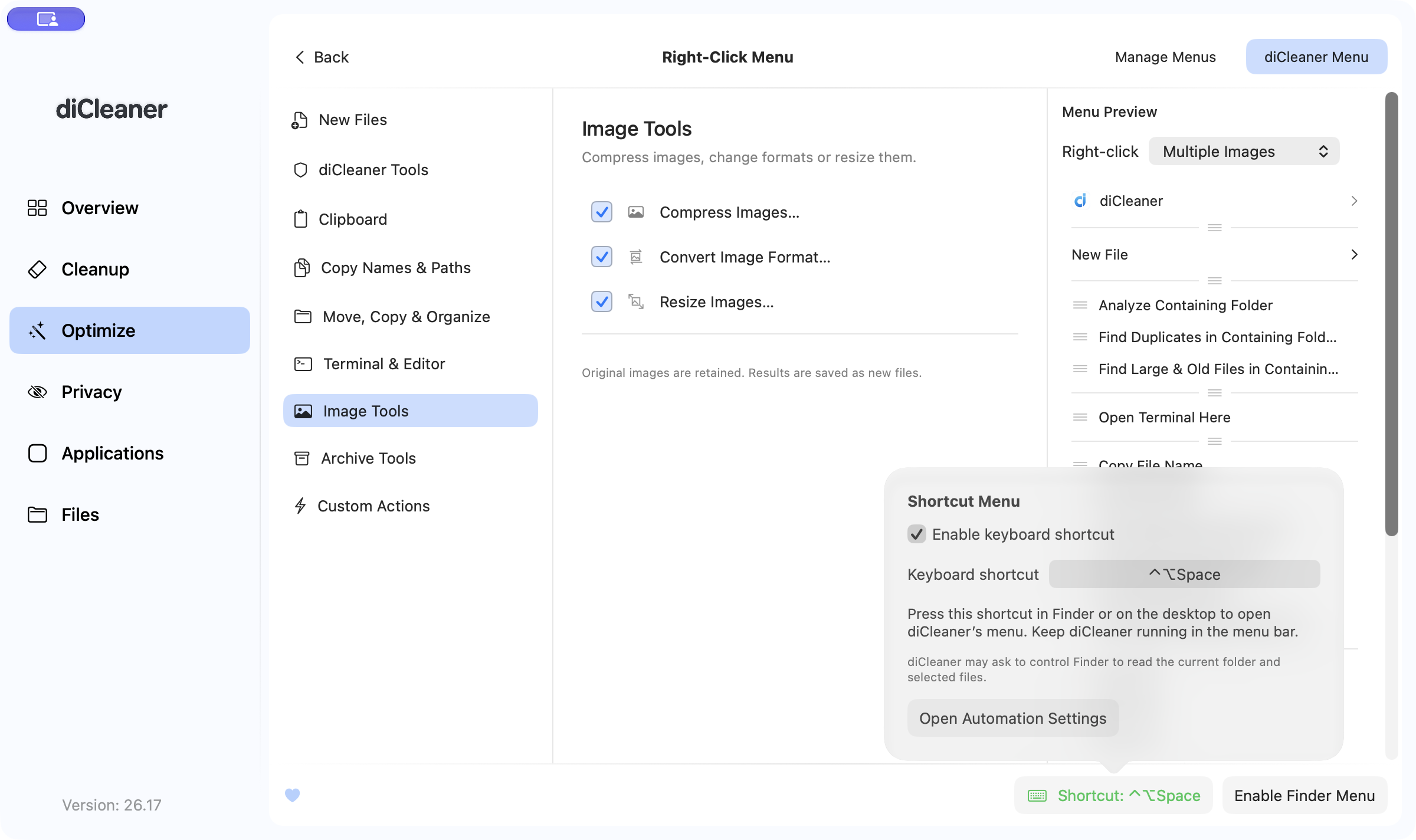
Confirm that:
- Enable keyboard shortcut is on;
- the shortcut includes Command or Control;
- another app is not already using the same shortcut;
- diCleaner is running in the menu bar;
- Finder is allowed under System Settings → Privacy & Security → Automation.
If diCleaner says the menu-bar component is outdated or could not restart, select Restart Menu Bar App, then try the shortcut again in Finder or on the desktop.
A command appears but fails
Try the same command in a normal writable folder, such as a folder inside your home directory. The original location may be read-only, protected, offline, or unavailable to diCleaner.
Then check the item involved:
- For move or copy commands, confirm that the source still exists and the destination is available.
- For archive or image commands, confirm that the disk has enough free space for a new output file.
- For cloud files, download the file before trying again.
- For network volumes and external disks, reconnect the volume and grant access if macOS asks.
- For a custom action, run the Apple Shortcut or script directly to check whether it has its own error.
If an administrator or file-access prompt appears unexpectedly, cancel it. Retry only after confirming that the prompt matches the command you selected.