


The permission you need depends on how you open the diCleaner menu.
| What you want to use | What to allow |
|---|---|
| diCleaner in Finder’s right-click menu | Turn on the diCleaner Finder extension. |
| The keyboard shortcut menu | Keep diCleaner running in the menu bar and allow Automation access to Finder. |
| A command that reads or changes files | Allow access to the requested folder, disk, Photos library, or protected location when macOS asks. |
You can use the Finder extension, the keyboard shortcut, or both.
Turn on the Finder extension
- Open Optimize → Right-Click Menu → diCleaner Menu.
- Select Enable Finder Menu.
- Select Open System Settings in the setup panel.
- Turn on the diCleaner Finder extension.
- Return to diCleaner and select Refresh Status.
Follow the System Settings path displayed inside diCleaner. Apple moved this setting between macOS releases.
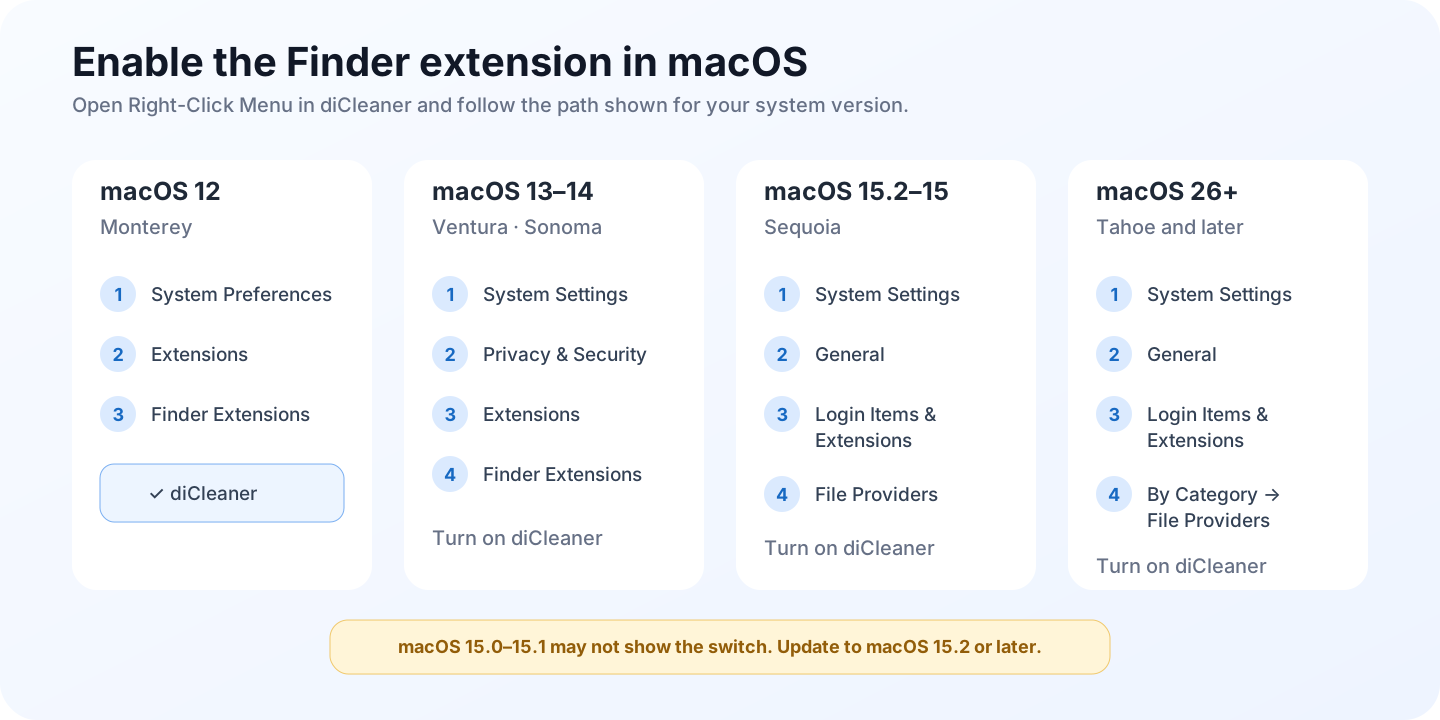
If macOS lists more than one diCleaner extension, it has probably found multiple copies of the app. Keep the copy you use in Applications, remove obsolete copies, then relaunch Finder or sign out and back in.
Allow the keyboard shortcut to read Finder
The shortcut menu needs to know which Finder folder is open and which files are selected. macOS controls this through Automation permission.
- Open Optimize → Right-Click Menu → diCleaner Menu.
- Select Set Shortcut.
- Turn on Enable keyboard shortcut and record a shortcut.
- When macOS asks whether diCleaner may control Finder, choose Allow.
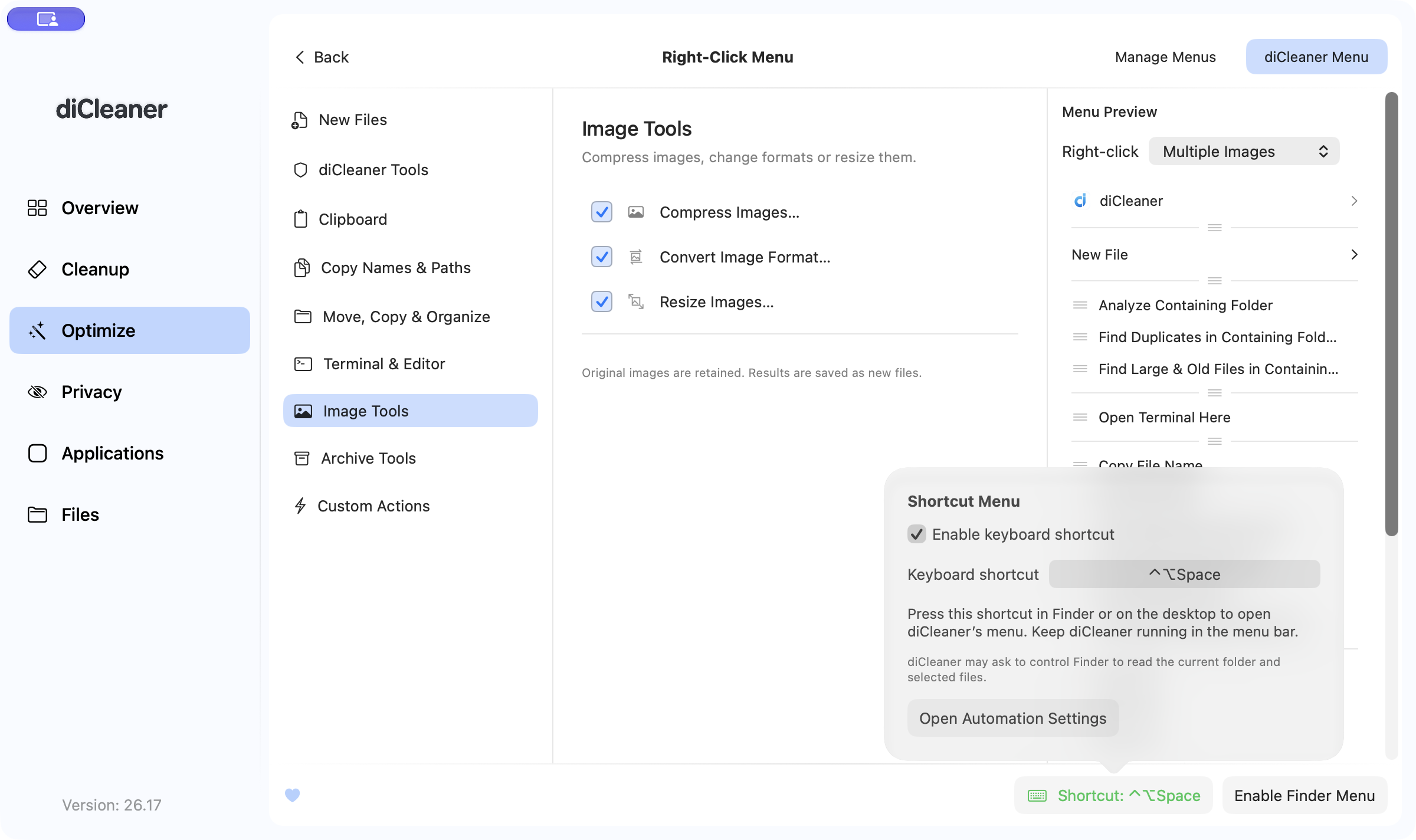
If you previously denied the request, select Open Automation Settings, or open System Settings → Privacy & Security → Automation, then allow Finder for diCleaner or its menu-bar component.
Turning Automation access off affects only the shortcut method. It does not turn off the Finder right-click extension.
Respond to permission prompts from a command
Turning on the menu does not give every command access to every file. macOS may ask again when a command needs a protected folder, an external disk, Photos data, a destination folder, or an administrator-only operation.
Check that the prompt matches the command you just selected. If it does, grant only the access needed for that command. If it does not, cancel the prompt and review the selected action.