


The Finder extension and the optional keyboard shortcut use different macOS controls.
Enable the Finder extension
Open Optimize → Right-Click Menu → Enable Finder Menu, then follow the System Settings path shown for your macOS version. Turn on the diCleaner Finder extension and return to diCleaner to refresh its status.
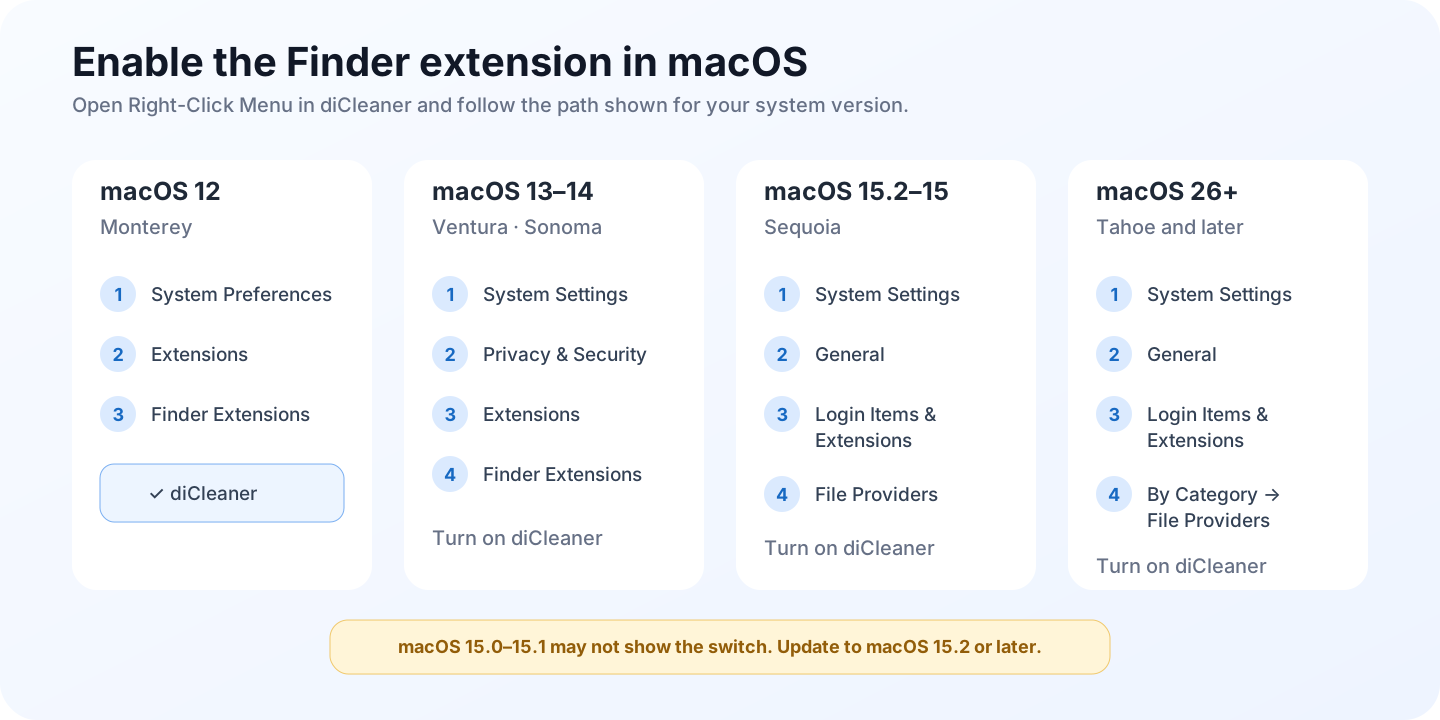
On some systems, macOS may list more than one copy after diCleaner has been moved, renamed, updated, or installed in multiple locations. Keep the intended copy in Applications, remove obsolete copies, and restart Finder or sign out if macOS continues loading an old extension.
Allow the keyboard shortcut to read Finder
The optional shortcut menu asks macOS for Automation access so the menu component can identify Finder’s current folder and selected files.
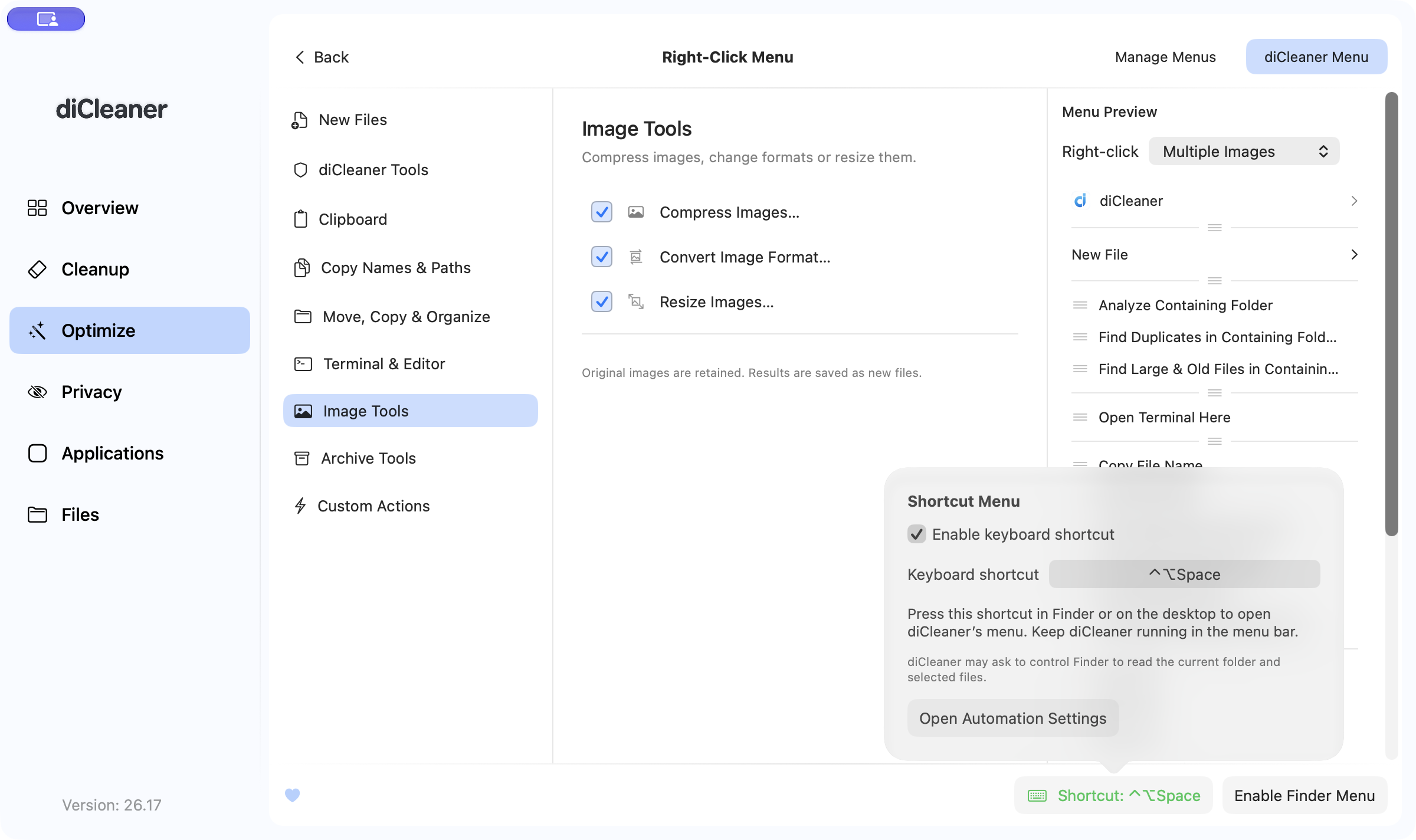
If macOS prompts you, confirm that the request names diCleaner or its menu component and Finder, then allow it only if you want to use the shortcut menu. You can review the setting under System Settings → Privacy & Security → Automation.
Disabling Automation access does not disable the Finder extension itself. It prevents the shortcut method from reading the current Finder context correctly.
Additional access for an action
Enabling the menu does not grant every file permission. An action can still require access to its source, destination, external disk, protected location, Photos data, Vault, or administrator-only operation.
Grant only the access needed for the selected action. The menu never makes a deletion or custom script safe without review.