


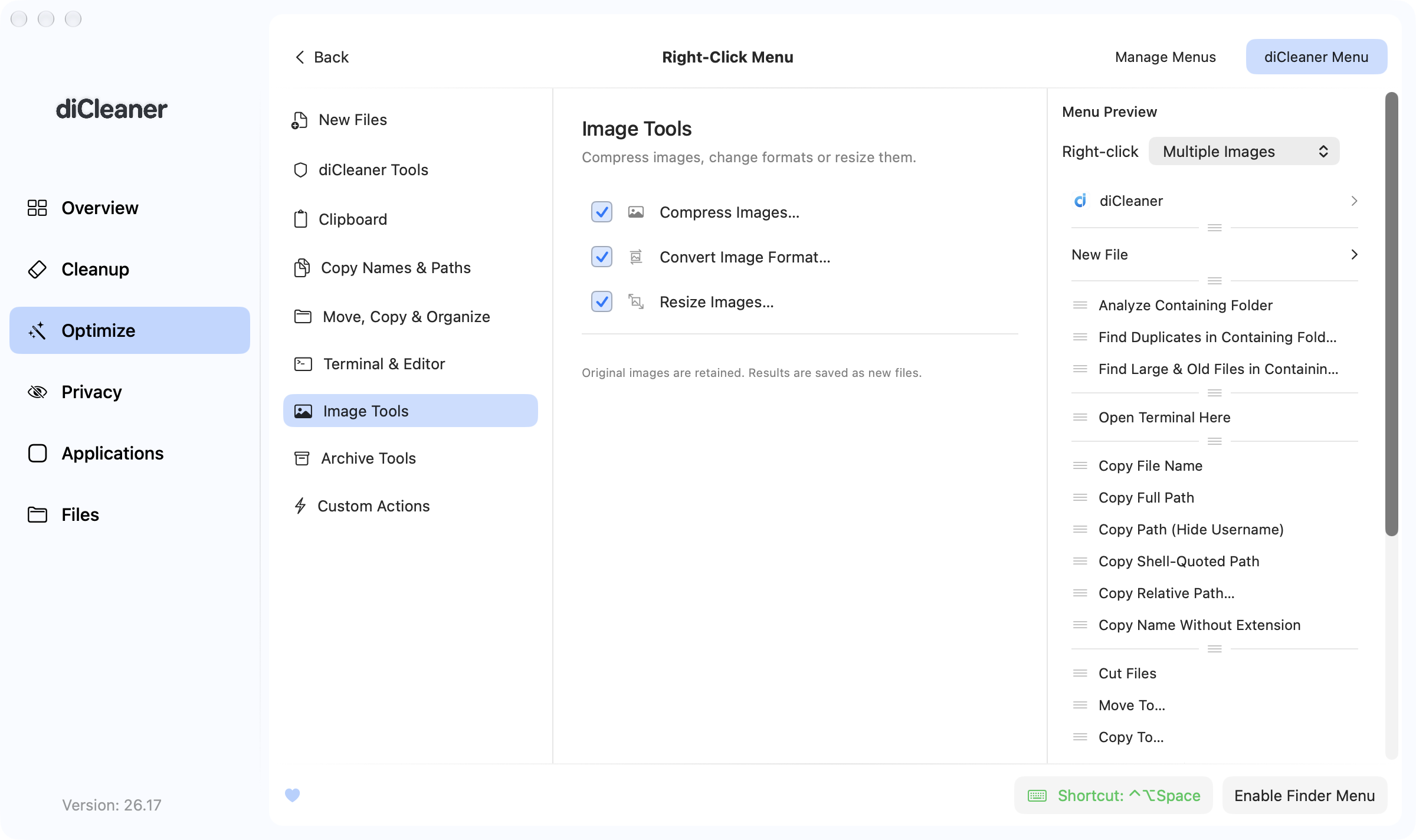
Open Optimize → Right-Click Menu to choose the diCleaner commands that appear when you Control-click a file, folder, or folder background in Finder.
The available commands change with the selection. For example, image commands appear for supported images, extraction appears for ZIP archives, and uninstall appears for applications. A command that is enabled in diCleaner can therefore still be hidden when it does not apply to the current Finder context.
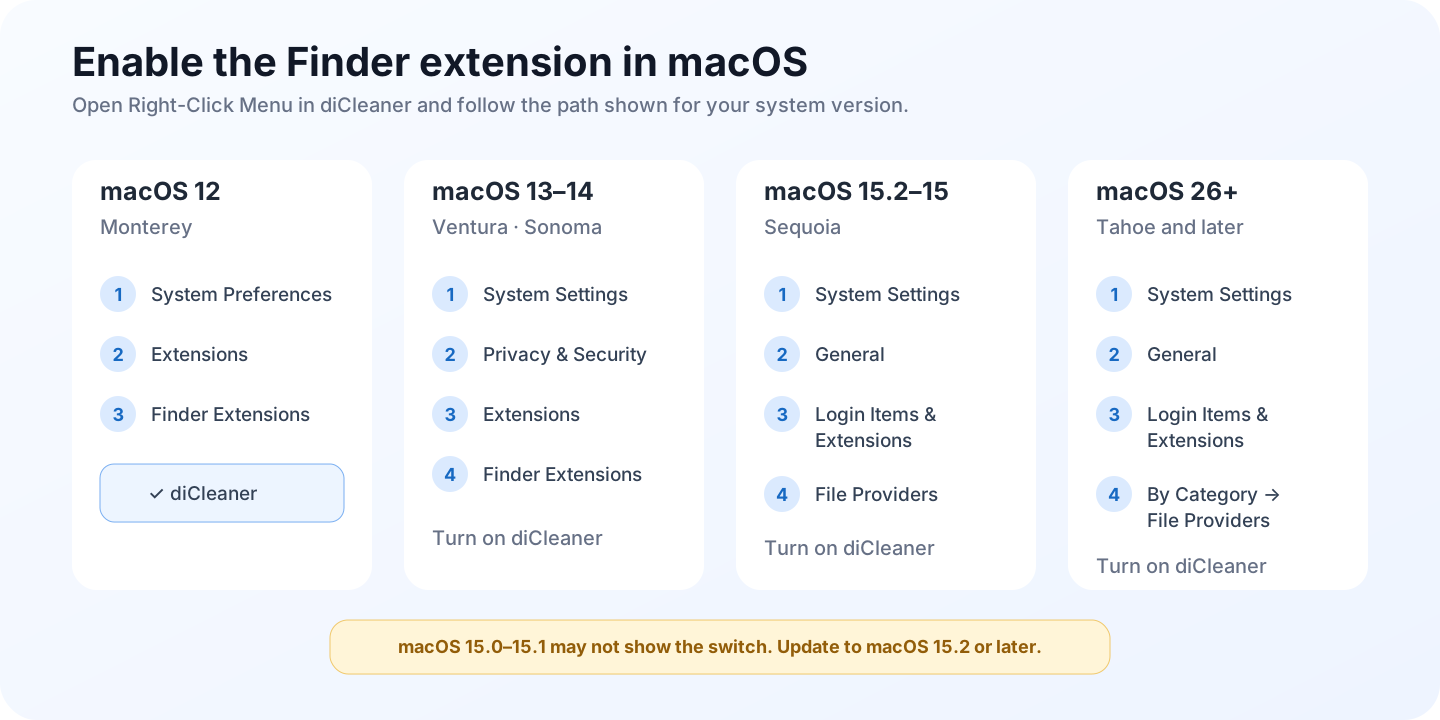
Enable the Finder menu
- Open Optimize → Right-Click Menu.
- Select Enable Finder Menu.
- Follow the displayed System Settings path and turn on the diCleaner Finder extension.
- Return to diCleaner and select Refresh Status.
- Control-click an appropriate item in Finder.
The System Settings location differs by macOS version. Follow the path shown in diCleaner rather than relying on instructions for another macOS release.
You can keep all commands inside a diCleaner submenu and choose whether menu icons are shown.
Choose and arrange commands
Use the category list to enable commands for:
- creating files from built-in types or your own template files;
- saving clipboard text or images and pasting copied files;
- opening a location in a terminal or editor;
- copying file names and several path formats;
- cutting, moving, copying, favoriting, or batch-renaming items;
- compressing, converting, or resizing images;
- creating clean or separate ZIP archives and extracting ZIP files;
- opening Space Analyzer, Duplicate Files, Large & Old Files, or Uninstaller with the Finder selection.
Use Menu Preview to test different selection and clipboard contexts. Drag a category handle to reorder categories, or drag a command within its category to reorder it. Changes are saved automatically.
Some commands are not available in every edition. In particular, encrypted disk images and Vault actions are not available in the Mac App Store edition.
Add templates and destinations
Under New Files, add an existing file as a reusable template. A new file is created as a copy of that template; the original is not changed.
Under Move, Copy & Organize, add frequently used folders as destinations for Move To and Copy To. Review the destination before confirming a move.
Items added with Add to Favorites are available from the star menu in the diCleaner menu-bar panel.
Add a custom action
Use Custom Actions → Add Action… to run an Apple Shortcut with the selected files. The direct edition can also use an existing shell script.
diCleaner asks for confirmation before each custom action runs. A custom action is user-provided automation: review what the Shortcut or script does before passing files to it.
Use the keyboard shortcut menu
Select Set Shortcut, enable the keyboard shortcut, and record a combination that includes Command or Control. With the diCleaner menu component running, press the shortcut in Finder or on the desktop to open the menu for the current folder and selection.
The shortcut method may request permission to control Finder. It is also useful in locations where Finder does not show the extension menu.
Manage other Finder commands
The Manage Menus tab links to macOS settings for Finder extensions, Quick Actions, and Services. Turning off another app’s Finder extension hides its Finder integration; it does not uninstall that app.