


diCleaner 26.20 adds screenshot text search and a customizable menu bar
On This Page
You remember the error message, but the screenshot is one of dozens of files called “Screenshot” followed by a date. In diCleaner 26.20, released November 10, you can search for a word that was on the screen when you took it.
Find the screenshot, then get it ready to share
Open Photos → Screenshot Manager, scan the folder or Photos library where you keep your captures, and choose Index screenshot text for search. diCleaner recognizes text on your Mac. In the example below, typing “diCleaner” brings up screenshots of the app even though their filenames only tell you when they were taken.
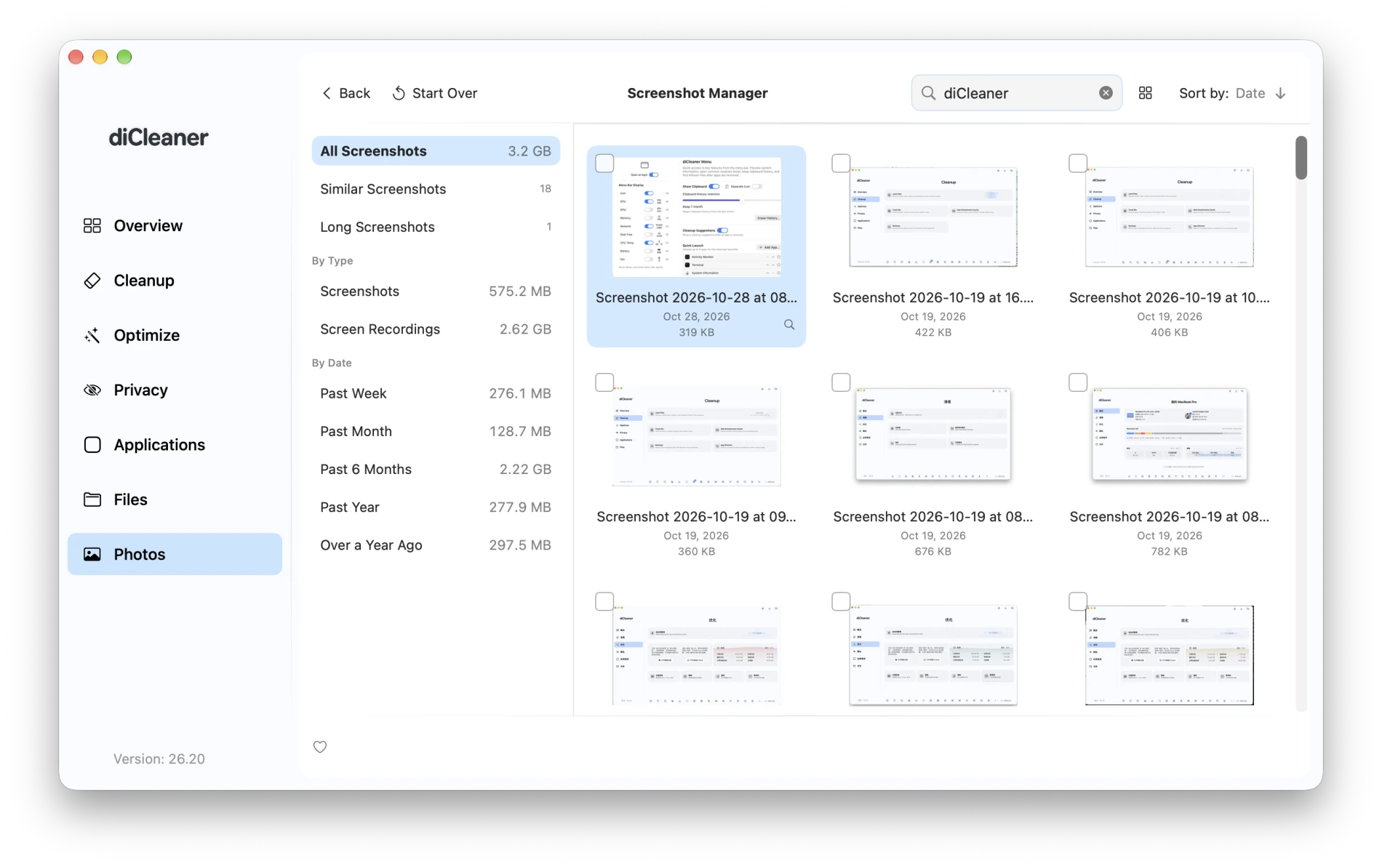
Before sharing a screenshot, you can open it in Image Editor to cover a private detail or crop it out. For photos, Photo Smart Cleanup groups similar shots and flags ones that may be blurry, overexposed, or too dark. Compare them side by side and choose which to keep.
Choose what you see in the menu bar
Open Settings → Menu and choose the readings you want under Menu Bar Display. If you often check how much storage is left, turn on Disk Free and drag its handle to move it up the list. The setup below shows CPU usage, CPU temperature, and fan speed.
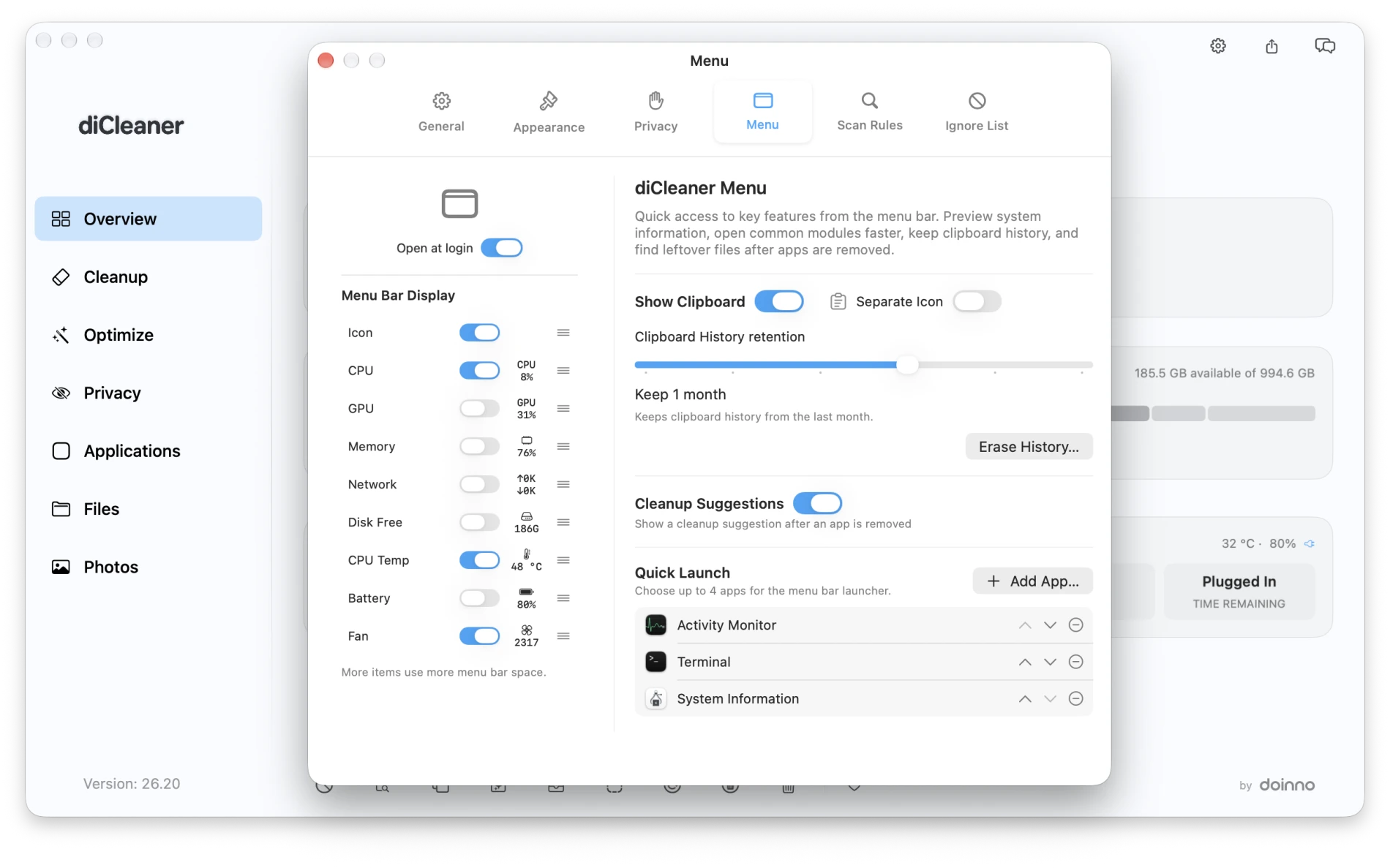
Two smaller changes are useful in daily work. You can delete one item from clipboard history, and folder scans for duplicate files or photo cleanup now skip recognized web, app and game projects by default.